Getting Started with Flutter: A Beginner's Guide to Cross-Platform App Development
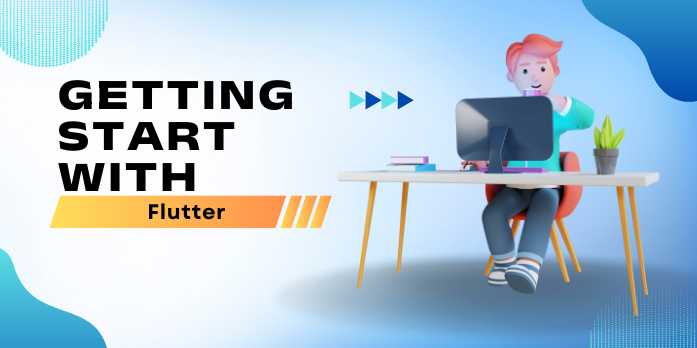

📘 Chapter 4: Layouts and Navigation in Flutter
🧭 What You’ll Learn
This chapter focuses on building responsive layouts
and implementing multi-screen navigation in Flutter. By the end, you’ll
be able to:
- Use
layout widgets like Column, Row, Stack, Expanded, and Flexible
- Create
responsive designs with MediaQuery and LayoutBuilder
- Build
multi-screen apps with Navigator and named routes
- Pass
data between screens
- Manage
the navigation stack
📐 Layout System in
Flutter
In Flutter, everything is a widget—including layouts. Layout
widgets organize UI components in a structured, responsive manner.
🔲 Basic Layout Widgets
1. Container
A versatile widget for spacing, background color, size, and
decoration.
dart
Container(
padding: EdgeInsets.all(16),
color: Colors.blue,
child: Text('Hello'),
)
2. Row and Column
Use Row for horizontal layout and Column for vertical.
dart
Row(
mainAxisAlignment:
MainAxisAlignment.spaceEvenly,
children: [Icon(Icons.star),
Icon(Icons.star_border)],
)
dart
Column(
mainAxisAlignment: MainAxisAlignment.center,
children: [Text('Top'), Text('Bottom')],
)
3. Expanded and Flexible
Used within Row or Column to control space distribution.
dart
Row(
children: [
Expanded(child: Container(color:
Colors.red, height: 100)),
Expanded(child: Container(color:
Colors.green, height: 100)),
],
)
4. Stack and Positioned
Overlays widgets on top of each other.
dart
Stack(
children: [
Container(height: 200, color: Colors.grey),
Positioned(top: 10, left: 10, child:
Text('Overlay')),
],
)
🧱 Layout Summary Table
|
Widget |
Description |
Use Case |
|
Container |
Wrapper with padding,
color, and size |
Styling and spacing |
|
Row |
Horizontal
layout |
Buttons in a
toolbar |
|
Column |
Vertical layout |
Form elements |
|
Stack |
Overlapping
layout |
Image
overlays, badges |
|
Expanded |
Fill remaining space
in Row/Column |
Equal width columns |
|
Flexible |
Control how a
child expands |
Variable size
layout |
🔍 Responsive Layouts
✅ Using MediaQuery
Provides screen size, orientation, padding, etc.
dart
double
width = MediaQuery.of(context).size.width;
Container(
width: width * 0.5,
color: Colors.amber,
)
✅ Using LayoutBuilder
Gives constraints to build responsive UI based on space
available.
dart
LayoutBuilder(
builder: (context, constraints) {
if (constraints.maxWidth > 600) {
return Text('Tablet layout');
} else {
return Text('Mobile layout');
}
},
)
🧭 Navigation in Flutter
Flutter uses a stack-based navigation system. Screens
are pushed and popped like a stack.
🔁 Basic Navigation:
Navigator.push
Navigate to a new screen:
dart
Navigator.push(
context,
MaterialPageRoute(builder: (context) =>
SecondScreen()),
);
Back to previous screen:
dart
Navigator.pop(context);
🧱 Example: Two-Screen App
🔹 First Screen
dart
ElevatedButton(
onPressed: () {
Navigator.push(
context,
MaterialPageRoute(builder: (context)
=> SecondScreen()),
);
},
child: Text('Go to Second Screen'),
)
🔹 Second Screen
dart
Scaffold(
appBar: AppBar(title: Text('Second Screen')),
body: Center(
child: ElevatedButton(
child: Text('Go Back'),
onPressed: () =>
Navigator.pop(context),
),
),
)
📦 Named Routes
Good for apps with many screens.
🔹 Define Routes in
MaterialApp
dart
MaterialApp(
initialRoute: '/',
routes: {
'/': (context) => HomePage(),
'/second': (context) => SecondPage(),
},
)
🔹 Navigate Using Names
dart
Navigator.pushNamed(context,
'/second');
📤 Passing Data Between
Screens
🔹 Send Data
dart
Navigator.push(
context,
MaterialPageRoute(
builder: (context) => SecondScreen(data:
'Hello!'),
),
);
🔹 Receive Data
dart
class
SecondScreen extends StatelessWidget {
final String data;
SecondScreen({required this.data});
}
🔁 Returning Data to
Previous Screen
🔹 Await a Result
dart
final
result = await Navigator.push(
context,
MaterialPageRoute(builder: (context) =>
InputScreen()),
);
print('Returned:
$result');
🔹 Send Result Back
dart
Navigator.pop(context,
'Some value');
🧩 Navigation Drawer
Example
Used for side menu navigation.
dart
Scaffold(
drawer: Drawer(
child: ListView(
children: [
DrawerHeader(child: Text('Menu')),
ListTile(
title: Text('Page 1'),
onTap: () =>
Navigator.pushNamed(context, '/page1'),
),
],
),
),
)
🔄 Bottom Navigation Bar
Example
dart
BottomNavigationBar(
currentIndex: selectedIndex,
onTap: (index) => setState(() =>
selectedIndex = index),
items: [
BottomNavigationBarItem(icon:
Icon(Icons.home), label: 'Home'),
BottomNavigationBarItem(icon:
Icon(Icons.settings), label: 'Settings'),
],
)
📘 Best Practices for
Layout and Navigation
- ✅
Keep layout code modular (split into small widgets)
- ✅
Use SafeArea to avoid overlapping system UI
- ✅
Use named routes for scalable navigation
- ✅
Use PageView for swipeable content
- ✅
Avoid deep nesting; use builder methods
✅ Summary
In this chapter, you’ve learned:
- How
to structure UI with Flutter layout widgets
- How
to build responsive designs using MediaQuery and LayoutBuilder
- How
to navigate between screens using Navigator and named routes
- How
to pass data between screens and return results
- How
to implement common navigation patterns (drawer, tabs, bottom nav)
This sets the stage for adding state management and
interactivity, coming up in Chapter 5: State Management Essentials.
FAQs
❓1. What is Flutter and why should I use it?
Answer:
Flutter is an open-source UI toolkit by Google that enables you to build
natively compiled apps for mobile, web, and desktop from a single codebase.
It’s fast, efficient, and perfect for building beautiful, responsive UIs with a
single programming language—Dart.
❓2. Do I need to know Dart before learning Flutter?
Answer:
Not necessarily. Dart is easy to learn, especially if you’re familiar with
JavaScript, Java, or C#. Most Flutter tutorials introduce Dart basics along the
way, making it beginner-friendly.
❓3. Can I build both Android and iOS apps with Flutter?
Answer:
Yes! Flutter allows you to develop apps for Android and iOS from a single
codebase. You can also compile apps for web, Windows, macOS, and Linux using
the same project.
❓4. What are the system requirements to run Flutter?
Answer:
You’ll need a modern operating system like Windows 10+, macOS, or Linux, along
with tools like Git, an IDE (VS Code or Android Studio), and device emulators
or simulators for testing.
❓5. What is "hot reload" in Flutter?
Answer:
Hot reload is a Flutter feature that allows you to instantly see code changes
in your running app without restarting the entire application. It boosts
productivity and speeds up the development process.
❓6. How do I install Flutter on my computer?
Answer:
You can download the Flutter SDK from flutter.dev, extract it to a folder, add it to your system
PATH, and run flutter doctor to check for setup issues. IDE plugins are also
available for Android Studio and VS Code.
❓7. Is Flutter good for web development?
Answer:
Yes, Flutter supports web development, though it’s still evolving compared to
mobile. It’s ideal for building highly interactive web apps or PWAs with
consistent UI and shared code.
❓8. What are widgets in Flutter?
Answer:
Widgets are the building blocks of a Flutter app. Everything you see on
screen—text, buttons, layout elements, animations—is a widget that can be
customized or nested inside other widgets.
❓9. How does Flutter compare to React Native?
Answer:
Both are popular cross-platform frameworks, but Flutter offers better
performance due to its native rendering engine and avoids using platform views.
React Native uses JavaScript and relies more on native components.
❓10. Where can I find good Flutter tutorials and resources?
Answer:
Start with the official Flutter documentation, Flutter YouTube channel,
freeCodeCamp, and
community blogs on Medium or Dev.to. You can also explore interactive learning
on Flutter Apprentice.
Explore Other Libraries

Please allow ads on our site
Please log in to access this content. You will be redirected to the login page shortly.
Login

Comments(0)